
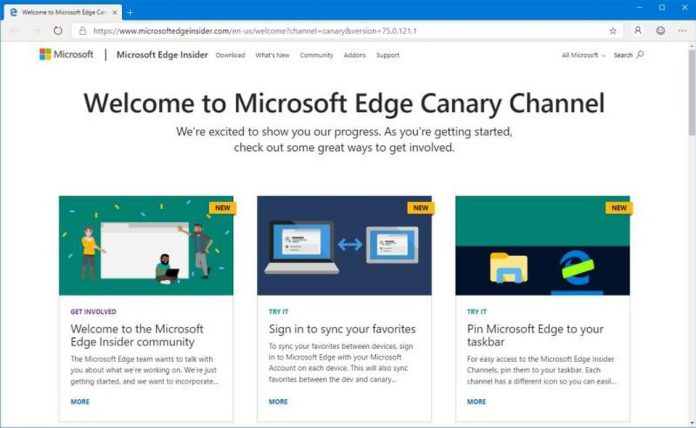

So you have decided to download Microsofts new beta release but found it lacking the Google Search option.
It is simply enough to add so lets go though it.
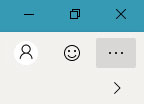
- Click on the 3 dots in the top right corner.
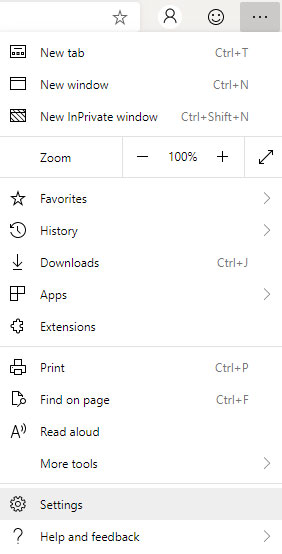
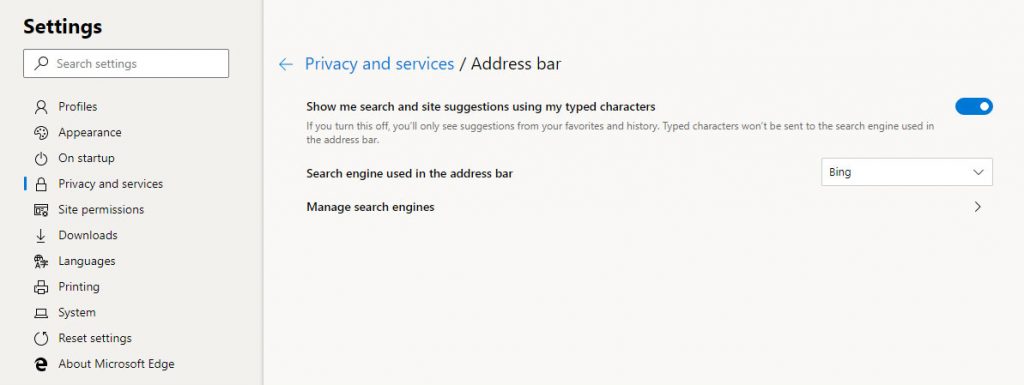
2. Select settings.
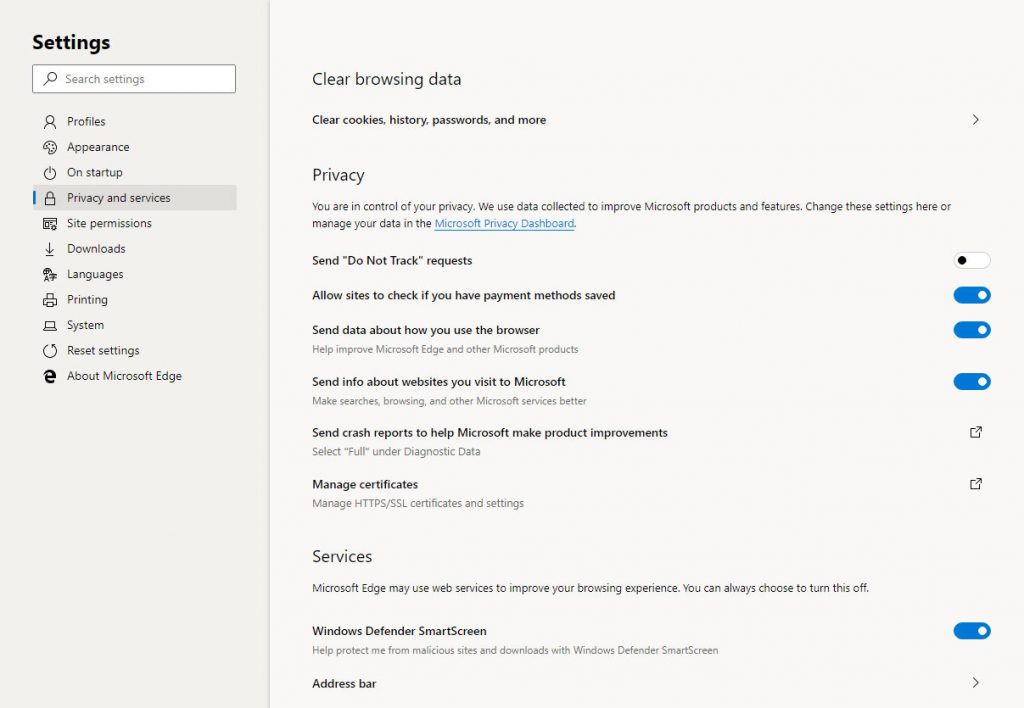
3. Head to Privacy and services and select Address bar
4. Then select Manage search engines.
5. Press the Add button and enter the details required to allow Google Search to work.
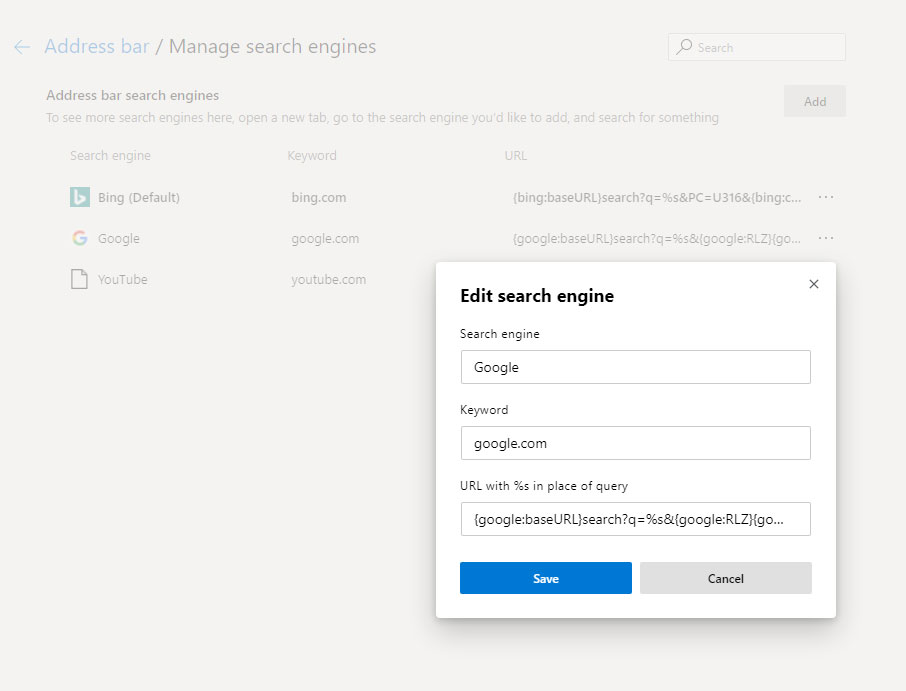
The details required are as follows:
Search Engine : Google
Keyword: google.com
URL with %s in place of query:
{google:baseURL}search?q=%s&{google:RLZ}{google:originalQueryForSuggestion}{google:assistedQueryStats}{google:searchFieldtrialParameter}{google:iOSSearchLanguage}{google:searchClient}{google:sourceId}{google:contextualSearchVersion}ie={inputEncoding}
Once the details have been entered simply click on the three dots beside Google and pick Make Default.
Thats it, you are now ready to search Google using Microsoft Edge Chromium Edition!

